Frank Schneemann
- Start a new Excel spreadsheet
- Place the cursor in cell A1
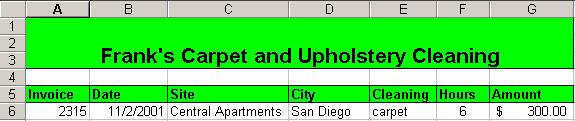
- Type "Frank's Carpet and Upholstery Cleaning"

- Highlight cells A1 to G3

- Find the Merge and Center icon and click it.
 (You
may also use the menus Format-Cells-Alignment to center and
merge.)
(You
may also use the menus Format-Cells-Alignment to center and
merge.)- Highlight your heading, make it bold and change the
font size.
- You may also use the Fill and Border Icons to enhance your heading


- Place the cursor in cell A5
- Enter the headings and information you see on the right
(it is important to leave a blank row between the heading and first row of data)

- Highlight row 5 and change the text, borders and fill
- Place the cursor in cell D7
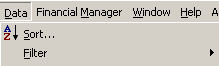
- Click the Sort Icon to sort alphabetically
- You can also open the Data Menu and select Sort
- Practice sorting other fields in the database
- Do not sort the headings
- Sort the data below the headings

We now want to find out how much money we earned in each of the cities in a database
- Sort the Cities column using the sorting method above
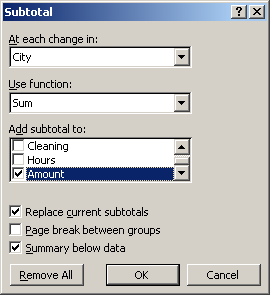
- Open the Data Menu and select Subtotals

- Fill in the boxes as we have on the right
At each change in:
City,
Sum
Amount
- Click OK to view the results
- Experiment by clicking the 1,2,3 buttons in the upper
left

Is this cool, or what!
To remove the subtotals
- Open the Data Menu
- Click
Sub-Totals - Click Remove All

- Make sure you have removed Subtotals from the Excel Database
- Open the Data Menu and click Filter
- Click Auto Filter
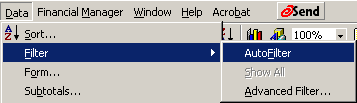
You should now have drop-down arrows next to each field name


- Click the Drop-down arrow next to the City Field
- Click San Diego from the list
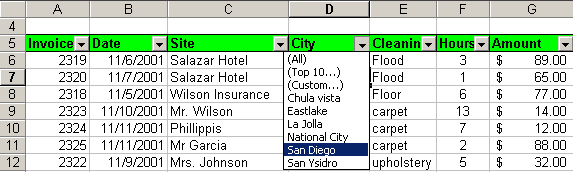
Experiment with the filters

- Print copies of the following forms and turn them in
for credit
Sorted Data
Subtotal
Filtered Data
- Create a database of your own using the skills you have
just learned
- You may create a Christmas gift list, name and address database or something academically oriented.
- You should have at least 10 records
- Use the filtering and sorting skills you have just learned
- When you are finished, print your database and turn it in for credit.
You did good!